Microsoft Edge: Browse with AI

50,000,000+
Installs
Microsoft Corporation
Developer
-
Social
Category
-
Rated for 3+
Content Rating
-
edge_ef@microsoft.com
Developer Email
-
https://go.microsoft.com/fwlink/?LinkId=521839
Privacy Policy
Screenshots
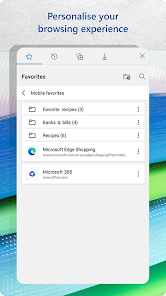
editor reviews
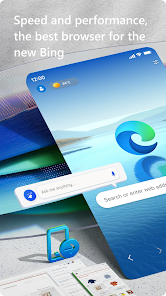
I started using Microsoft Edge on my Android phone mostly out of curiosity. It's a full-featured web browser built by Microsoft, and it's available for free on the Google Play Store. While it's already pre-installed on many Windows computers, you can download it on any device. The initial download took maybe a minute, and installation was straightforward. When I first opened it, I was surprised by how clean and modern it looked, not at all like a cluttered office tool. The app asks you to sign in with a Microsoft account, but you can skip that and just browse. I wasn't forced into any purchases or overwhelmed by ads, which made the first launch feel welcoming. You can sync your bookmarks, passwords, and settings across your PC and phone if you want, which is a huge plus for anyone living in the Windows ecosystem.
Once I started using it, the experience felt smooth and familiar. The home screen has a search bar at the top, quick links to frequently visited pages, and a news feed that you can customize or turn off. Setting up Edge was simple: I imported my bookmarks from Chrome in just a couple of taps. The main action is just typing a URL or a search query, and the results load quickly. One thing I really liked is the built-in "Collections" feature, which lets you save groups of web pages without cluttering your bookmarks. For example, I was planning a trip and saved several hotel pages into one collection. The interface is clean and doesn't get in your way, but there was a moment when I felt confused by how to access my saved passwords at first since they're buried in the settings menu. A practical tip: if you hold down the tab counter button, you can quickly close all open tabs.
After using Edge for a few weeks, I'd say it's a solid browser for anyone who already uses Microsoft services like Outlook or OneDrive. The integration with Copilot, Microsoft's AI assistant, is actually useful for summarizing long articles without leaving the page. People who care about privacy might appreciate the built-in tracking prevention, which feels better than what Chrome offers. But honestly, if you're already happy with Chrome or Firefox, Edge doesn't do anything groundbreaking unless you rely on that cross-device syncing. What makes Edge stand out is the AI features like "Read Aloud" with natural voices and "Image Creator" for generating pictures right in the browser. I uninstalled it after a month, not because it was bad, but because Chrome was already my daily driver. I could see keeping it if I used Windows more often or wanted to experiment with AI tools.
features
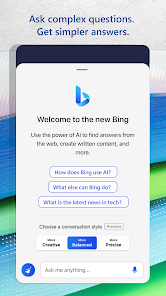
- 🤖 Copilot AI Integration: Unlike Safari which lacks a built-in AI assistant, Edge puts Copilot right in the toolbar. You can ask it to summarize a lengthy news article, rewrite a paragraph, or even generate an image based on a description without ever leaving the page. It's surprisingly handy for research or just breaking up a boring read.
- 📑 Collections: This feature is way more practical than Chrome's bookmark manager. You can drag and drop any link, image, or text snippet into a named collection, like "Gift Ideas" or "Recipes." It even lets you export the collection to Excel or Word, which I actually used for a work project once.
- 🔊 Read Aloud with Natural Voices: Edge's text-to-speech is better than what you'll find in Firefox. The voices sound more human, and you can adjust the speed easily. I used it to listen to long blog posts while cooking, and it made multitasking effortless.
pros
- 👍 Seamless Syncing with Windows: If you use a Windows PC, Edge syncs your open tabs, passwords, and history instantly. Chrome syncs too, but Edge feels tighter integrated with the OS, like being able to open a phone link directly from your PC browser.
- 👍 Privacy Controls Out of the Box: Edge includes three levels of tracking prevention (Basic, Balanced, Strict) that actually block most trackers by default. Chrome technically has this in Settings, but it's buried. Firefox does privacy better, but Edge's setup is good enough for average users.
- 👍 Vertical Tabs on Mobile: On a small phone screen, vertical tabs make a lot more sense than horizontal ones. Edge lets you switch to a vertical layout that shows tab titles without scrolling, which is something neither Chrome nor Safari offer on mobile.
cons
- 👎 Performance Drags on Old Devices: On my older Android phone, Edge felt noticeably slower than Chrome. Pages took an extra second to load, and switching tabs sometimes lagged. For a browser, speed is everything, and here Edge falls behind.
- 👎 Cluttered Settings Menu: Finding basic options like clearing cache or managing cookies took way too many taps. Safari on iOS has a much cleaner layout. I found myself searching through submenus instead of just adjusting settings quickly.
- 👎 Aggressive News Feed by Default: When you first install Edge, the new tab page is crammed with random news articles. You can turn it off in settings, but most people won't bother, and it just looks like a highway of ads. Chrome's new tab is cleaner from the start.
Articles
![]()
Guide
How to Update Google Play Store on Android 2026
![]()
Guide
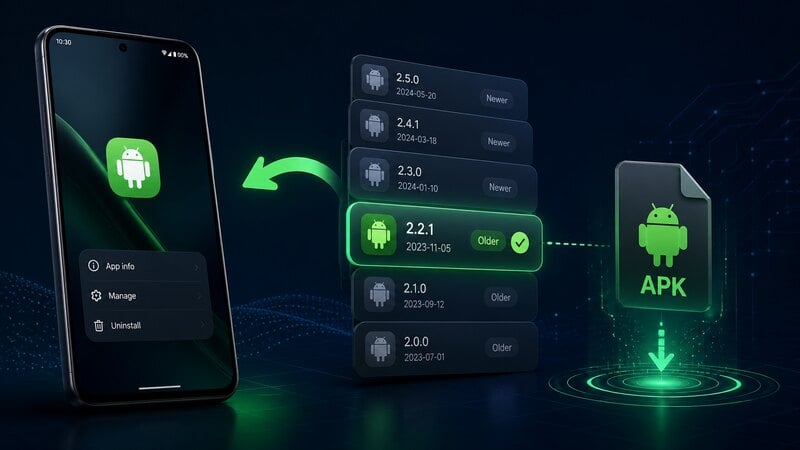
How to Download Older Versions of Android Apps
![]()
Guide
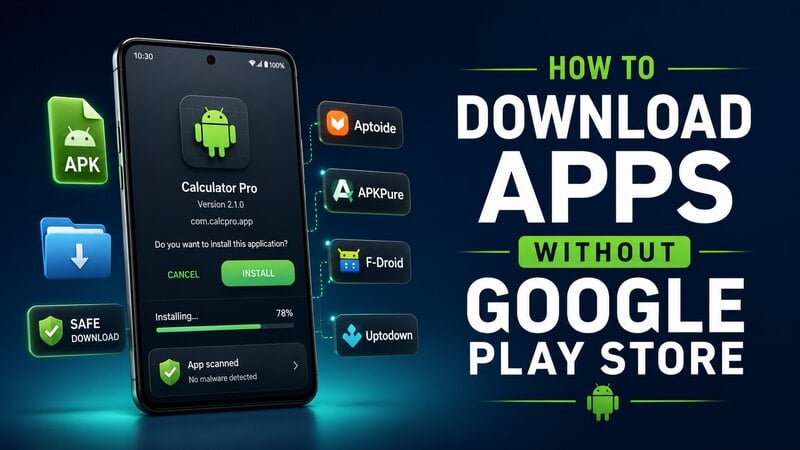
How to Download Apps Without Google Play Store
![]()
Guide
What Is an APK File for Android?
If you use an Android phone, you may have seen the term APK while searching for apps or games online. Some websites offer an APK download instead of a Google Play install button. Some users also mention APK files when talking about apps that are not available in their region, older app versions, or Android games downloaded outside the Play Store.
![]()
Guide
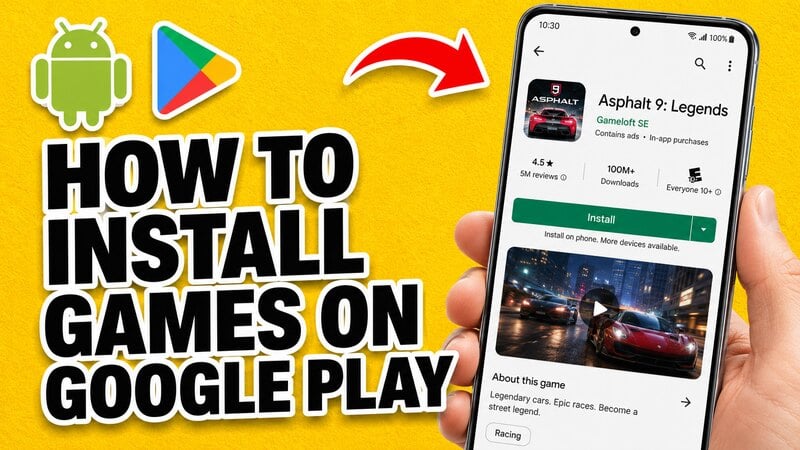
How to Install Games from Google Play for Beginners
Installing games on an Android phone is usually simple, but for beginners, the process can still feel confusing at first. You may not know where to search, which button to tap, whether the game is safe, or why Google Play sometimes asks for account settings, storage access, or payment information. If you are using an Android phone for the first time, learning how to install games from Google Play is one of the easiest ways to get started.
![]()
Guide
How Useful Gemini Is for Everyday Questions and Quick Tasks
emini feels different from many AI apps because it is not only trying to be a chatbot. After using it for everyday questions, quick writing, image understanding, and planning, I think its biggest strength is convenience.
![]()
Guide
What to Know Before Downloading APKs
For many Android users, downloading an APK is a common way to install apps and games. Sometimes an app is not available in a certain country.
![]()
Guide
ChatGPT Review: Is It Still the Best AI App in 2026?
![]()
Guide
Seedance 2.0 vs Sora: The Future of AI Video Generation
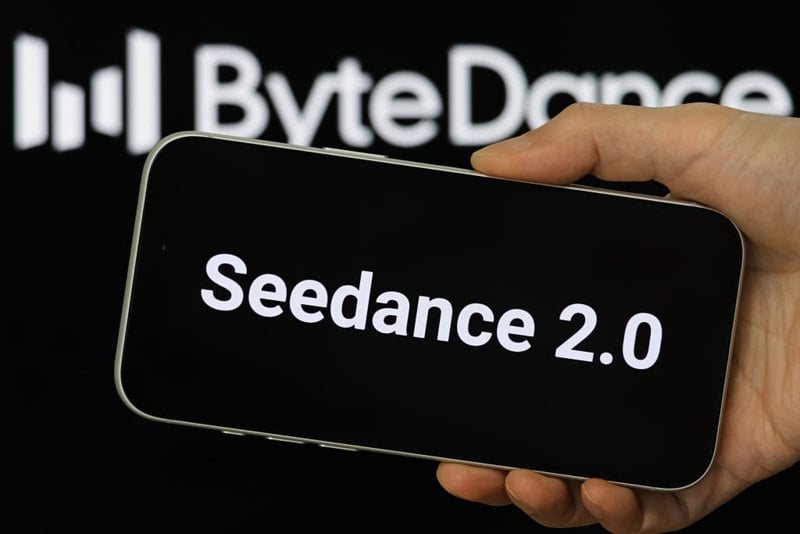
The AI video race has intensified dramatically over the past two years. Platforms like Sora from OpenAI and Luma Dream Machine pushed the boundaries of text-to-video realism. Yet, despite their impressive outputs, most tools still operate as probabilistic generators—you describe a scene, and the model interprets it. Control remains limited. With the February 2026 release of Seedance 2.0, developed by ByteDance, the paradigm shifted. Internally known as Jimeng 2.0, Seedance does not position itself as just another video model. It positions itself as an AI Director. Rather than guessing what you want, Seedance 2.0 allows you to direct what happens. This distinction defines everything that follows.

Recommended Apps
![]()
Home Design 3D
Anuman4.2
![]()
Truth or Dare Game - Party App
Chouic4.8
![]()
Photo Collage Maker
Scoompa4.7![]()
Learn to Draw Flower
Creative APPS4.2![]()
FIFA World Cup 2026™
FIFA2.8![]()
Mirror Plus: Mirror with Light
Digitalchemy, LLC4.4![]()
Meitu- Photo Editor & AI Art
Meitu (China) Limited4.5![]()
Perplexity - Ask Anything
PerplexityAI4.7![]()
GhostTube SLS Camera Alternate
GhostTube4![]()
Boom Chip Blast: 2-Player
Black Pyramid 3D Games Studio0![]()
Healthy Benefits+
Solutran, Inc.4.5![]()
Deepcheck AI Search Assistant
rohe.ai4![]()
Idol Prank Video Call & Chat
LightCode Solutions4![]()
Face Shape - Pretty Scale
GlintTec Apps3.9![]()
Plant App - Plant Identifier
ScaleUp4.6