Translate- Language Translator

10,000,000+
Installs
Office Lens: Android Tool, Translate, Scanner, PDF
Developer
-
Productivity
Category
-
Rated for 3+
Content Rating
-
mindmovertech@gmail.com
Developer Email
-
https://mindmovertech.blogspot.com/2019/07/privacy-policy.html
Privacy Policy
Screenshots
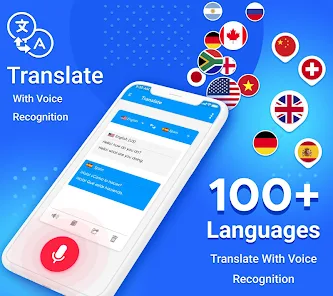
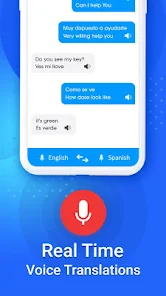
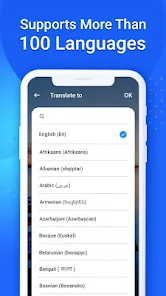
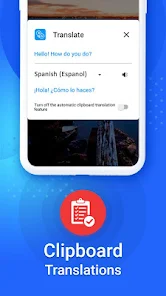
editor reviews
I picked up Translate by Office Lens because I kept running into situations where I needed to make sense of menus, signs, or documents in languages I don't read. It's basically a translation app with a strong scanning backbone, sitting somewhere between a pure text translator and a full-on document scanner. The app focuses on letting you point your camera at text and get instant translations overlaid on the image, but it also handles typed input and image uploads from your gallery. After downloading it from Google Play (free to install, with optional in-app purchases and ads that appear now and then), the first thing I noticed was how clean the interface looks. It doesn't throw a million buttons at you. The main screen just shows a camera viewfinder and a small text input field, which felt reassuringly straightforward for a tool supposed to do something complex under the hood.
Actually using it day to day was smoother than I expected. You open the app, point the camera at whatever text needs translating, and tap the shutter button. Within a second or two, the original text gets highlighted and replaced with the translated version directly on the screen. The overlay stays in place as you move the phone around, which is neat for reading large signs without taking multiple photos. For typed input, you can switch to a keyboard mode and type things out manually. There's also an import option for images saved on your phone, which came in handy when I wanted to translate a scanned PDF. The app does ask you to sign in with a Microsoft account before exporting or saving translations, but casual lookups work without logging in. One minor hiccup: the camera translation struggles a bit with decorative fonts or handwritten notes, but for printed text, it's surprisingly accurate. The onboarding is minimal, just a brief swipe-through that explains the camera mode, which I appreciated because I hate apps that force you through tutorials for things you already understand.
After a few weeks of keeping it installed, I can see why someone would stick with this app. It nails the core use case of camera-based translation for anyone who travels, studies foreign materials, or deals with multilingual documents at work. Compared to Google Translate, which offers similar live camera translation, Office Lens feels more tuned for document and sign translation rather than casual conversation. It doesn't handle voice translation or real-time dialogue, so if you need to talk to someone in another language, this isn't the right pick. But for scanning a page of Japanese instructions or translating a Spanish menu, it does the job with less clutter. The ads are present but not intrusive, showing up as a small banner at the bottom. I might uninstall it if I stop traveling frequently, because the text input mode alone isn't enough to justify keeping it over Google Translate. But for now, it earns a spot on my phone for the camera translation alone, which feels more polished than what I've tried elsewhere.
features
- 📸 Camera overlay translation feels like magic. Unlike Google Translate, which replaces the original image entirely, Office Lens keeps your view of the actual document or sign and lays the translated text right on top. This makes it easier to see where each translated phrase came from, especially on complex signs or forms.
- 📄 PDF and image import works natively. You can grab screenshots or scanned documents stored on your phone and translate them without retyping anything. This is something Google Translate can do too, but Office Lens handles the text recognition and layout preservation better in my experience, keeping paragraph breaks intact.
- 🔗 Integration with Microsoft Office apps is seamless. If you regularly use Word, OneNote, or Outlook, you can send translated text directly to those apps. This saves time when you're gathering research or preparing multilingual documents, a feature similar tools like iTranslate don't offer as cleanly.
- 🖼️ Handwriting and printed text support in the same interface. While Google Translate sometimes forces you to switch between camera and handwriting modes manually, Office Lens automatically detects whether you're scanning printed material or handwritten notes, adjusting its recognition engine accordingly. This reduces the number of taps needed.
pros
- 👍 Clean, minimal interface with no learning curve. The app doesn't bury features in nested menus, which makes it faster to translate spontaneously compared to apps like iTranslate or Microsoft Translator that have more scattered layouts.
- 👍 Offline translation works well for basic languages. You can download language packs in advance, and the quality holds up for common phrases, a clear advantage over apps that require constant internet access.
- 👍 Real-time camera translation keeps the original image context visible. This is better than Google Translate's full-replacement approach when you need to verify placement, like reading a bilingual warning label.
cons
- 👎 No voice translation or conversation mode. If you need to speak with someone in another language, this app won't help, while Google Translate and iTranslate both offer two-way voice translation.
- 👎 Handwriting recognition is inconsistent. Cursive or messy handwriting often yields gibberish, making the feature less reliable than the dedicated handwriting mode in Google Translate.
- 👎 Requires Microsoft account login for export and save features. This added step can feel unnecessary if you just want to copy a short translation, and it limits the app's usefulness for quick, anonymous lookups compared to alternatives that don't gate basic features behind sign-in.
- 👎 Ads appear even in core translation flows. While not overwhelming, an ad banner occasionally shows up right after a translation, which can feel disruptive when you're in a hurry, something I don't experience with ads-free competitors like Microsoft Translator.
Articles
![]()
Guide
How to Update Google Play Store on Android 2026
![]()
Guide
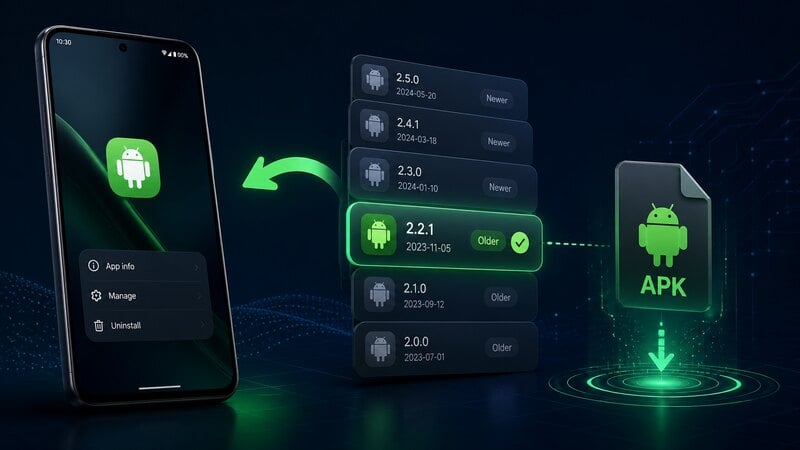
How to Download Older Versions of Android Apps
![]()
Guide
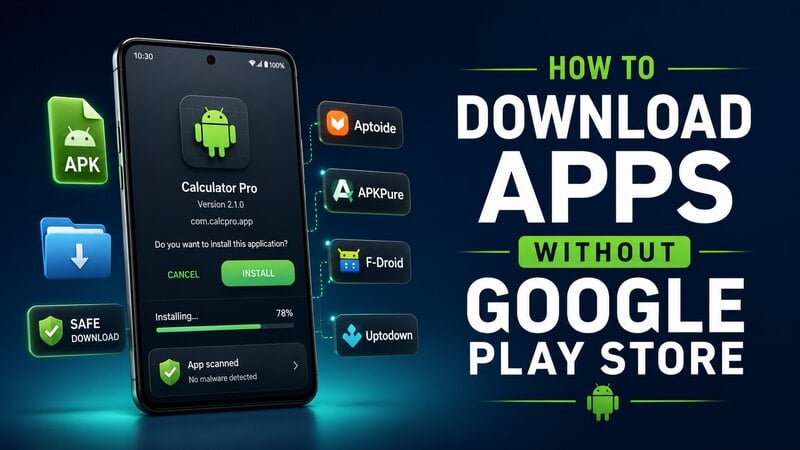
How to Download Apps Without Google Play Store
![]()
Guide
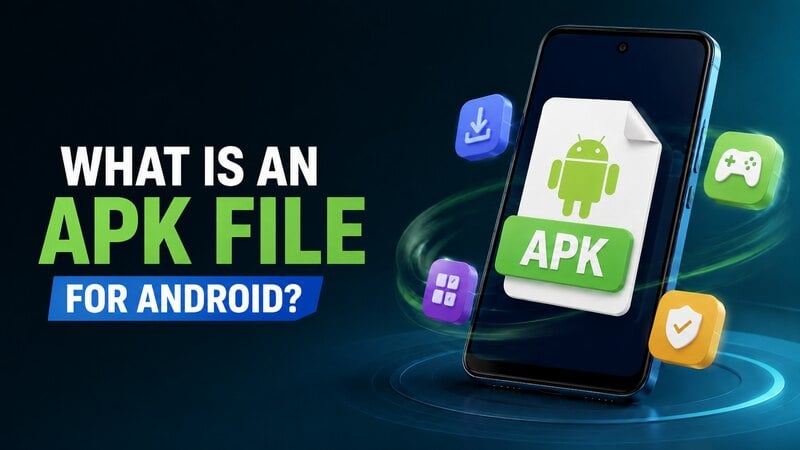
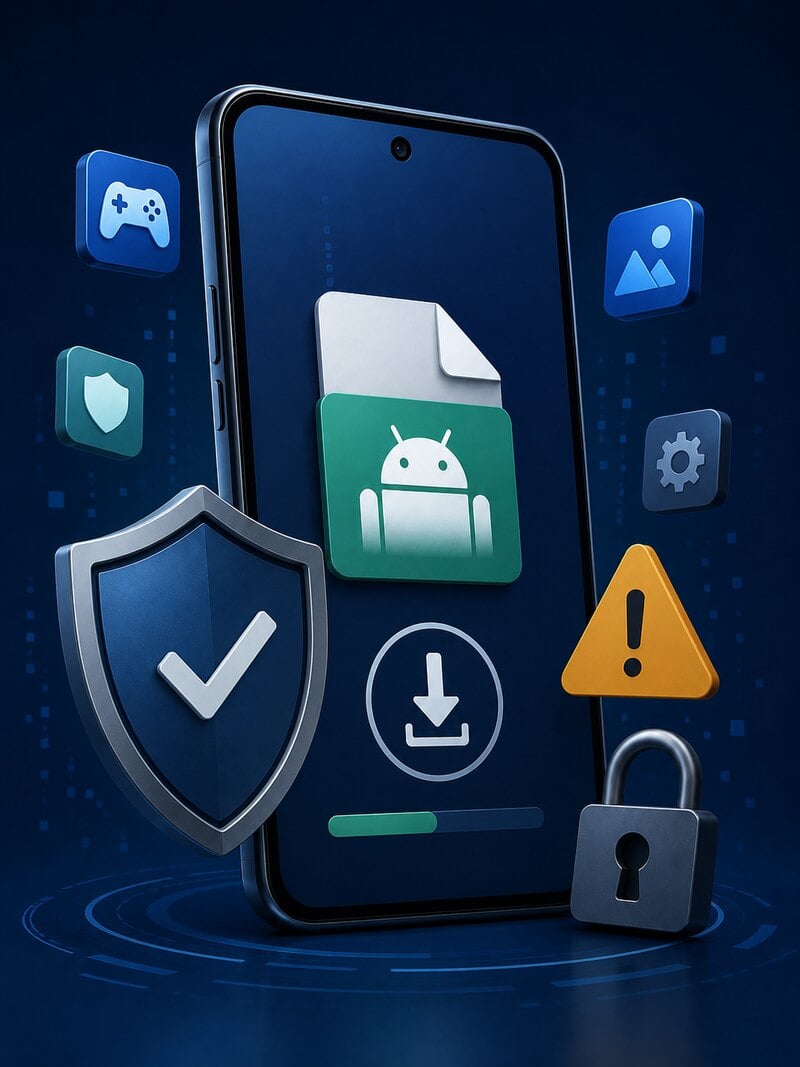
What Is an APK File for Android?
If you use an Android phone, you may have seen the term APK while searching for apps or games online. Some websites offer an APK download instead of a Google Play install button. Some users also mention APK files when talking about apps that are not available in their region, older app versions, or Android games downloaded outside the Play Store.
![]()
Guide
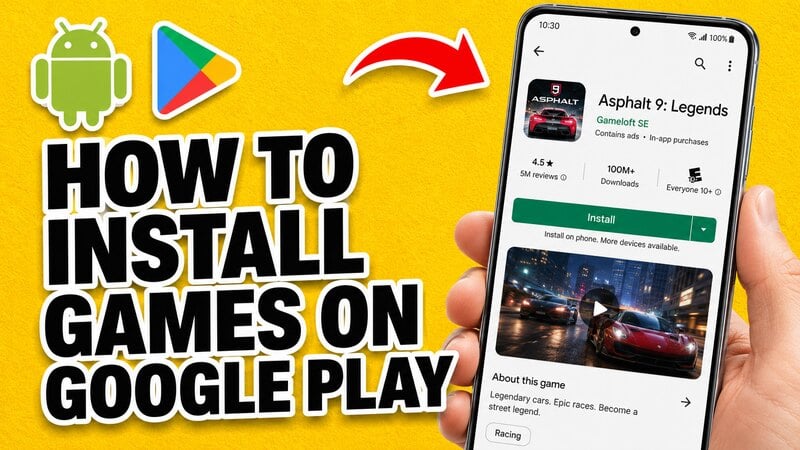
How to Install Games from Google Play for Beginners
Installing games on an Android phone is usually simple, but for beginners, the process can still feel confusing at first. You may not know where to search, which button to tap, whether the game is safe, or why Google Play sometimes asks for account settings, storage access, or payment information. If you are using an Android phone for the first time, learning how to install games from Google Play is one of the easiest ways to get started.
![]()
Guide
How Useful Gemini Is for Everyday Questions and Quick Tasks
emini feels different from many AI apps because it is not only trying to be a chatbot. After using it for everyday questions, quick writing, image understanding, and planning, I think its biggest strength is convenience.
![]()
Guide
What to Know Before Downloading APKs
For many Android users, downloading an APK is a common way to install apps and games. Sometimes an app is not available in a certain country.
![]()
Guide
ChatGPT Review: Is It Still the Best AI App in 2026?
![]()
Guide
Seedance 2.0 vs Sora: The Future of AI Video Generation
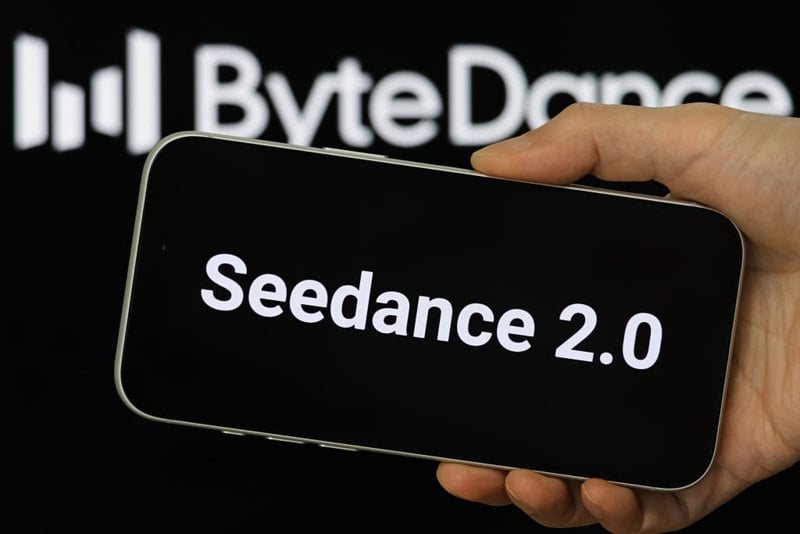
The AI video race has intensified dramatically over the past two years. Platforms like Sora from OpenAI and Luma Dream Machine pushed the boundaries of text-to-video realism. Yet, despite their impressive outputs, most tools still operate as probabilistic generators—you describe a scene, and the model interprets it. Control remains limited. With the February 2026 release of Seedance 2.0, developed by ByteDance, the paradigm shifted. Internally known as Jimeng 2.0, Seedance does not position itself as just another video model. It positions itself as an AI Director. Rather than guessing what you want, Seedance 2.0 allows you to direct what happens. This distinction defines everything that follows.
Recommended Apps
![]()
Home Design 3D
Anuman4.2
![]()
Truth or Dare Game - Party App
Chouic4.8
![]()
Photo Collage Maker
Scoompa4.7![]()
Learn to Draw Flower
Creative APPS4.2![]()
FIFA World Cup 2026™
FIFA2.8![]()
Mirror Plus: Mirror with Light
Digitalchemy, LLC4.4![]()
Meitu- Photo Editor & AI Art
Meitu (China) Limited4.5![]()
Perplexity - Ask Anything
PerplexityAI4.7![]()
GhostTube SLS Camera Alternate
GhostTube4![]()
Boom Chip Blast: 2-Player
Black Pyramid 3D Games Studio0![]()
Healthy Benefits+
Solutran, Inc.4.5![]()
Deepcheck AI Search Assistant
rohe.ai4![]()
Idol Prank Video Call & Chat
LightCode Solutions4![]()
Face Shape - Pretty Scale
GlintTec Apps3.9![]()
Plant App - Plant Identifier
ScaleUp4.6