Link to Windows

1,000,000,000+
Installs
Microsoft Corporation
Developer
-
Productivity
Category
-
Rated for 3+
Content Rating
-
ltwfeedback@microsoft.com
Developer Email
-
http://go.microsoft.com/fwlink/?LinkID=248686
Privacy Policy
Screenshots
editor reviews
Link to Windows is a utility app from Microsoft that essentially acts as a bridge between your Android phone and your Windows PC. You download it from the Google Play Store, install it, and then pair it with the Phone Link app already built into Windows 10 and 11. It's free to download and doesn't require any in-app purchases to function, though a Microsoft account is needed. I remember the first time I launched it, I was surprised by how minimal it felt — no flashy tutorials, just a quick sign-in and a QR code to scan. That simplicity actually made a good first impression, because it felt more like a system feature than a third-party app weighing down my phone.
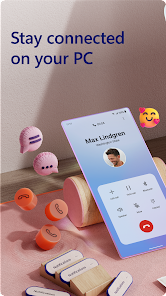
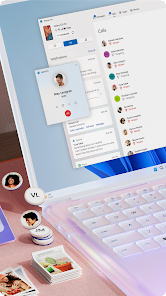
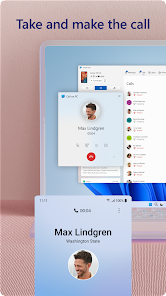
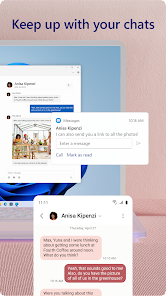
Once you get past the setup, the hands-on experience is pretty smooth. Your phone's recent photos, messages, notifications, and calls all show up on your PC without you having to touch your phone. The main screen on the app side is mostly invisible — it runs in the background, so you rarely even open it. On your PC, the Phone Link window displays everything you need. I found myself using it most for texting: I can type out replies using my keyboard, which is way faster than thumb-typing on a screen. One small tip I learned is that you can also make and receive calls from your PC, which is handy when I‘m wearing headphones. The experience isn't flawless — sometimes the connection lags for a few seconds after waking the PC — but overall, it works well enough that I don‘t think about it, which is the whole point.
After a few weeks of daily use, I'd say Link to Windows feels more like a convenience tool than a must-have. It's great if you‘re already in the Microsoft ecosystem — using Windows, Edge, or Outlook anyway — because the integration is tighter than anything else. But if you're not, you might not miss much. Where this app really shines compared to something like Samsung Flow or Pushbullet is that it's pre-installed on many Windows machines, so there's no extra hardware or subscription needed. That said, I have noticed it drains the phone‘s battery a bit faster when mirroring the screen, and the app list feature sometimes doesn't load fully. I can see myself keeping it installed because it saves me from picking up my phone a dozen times a day, but someone who doesn‘t multitask on a computer might uninstall it within a week.
features
- 💻 Screen mirroring is where this app feels like magic. You can cast your entire phone screen to your PC and interact with it using your mouse and keyboard. Samsung DeX does this too, but Link to Windows goes further by letting you run Android apps directly in a separate window on your desktop. So you can open Instagram, reply to a WhatsApp message, and scroll Twitter all from different windows, just like native Windows apps. No other tool I've tried feels this fluid for multi-app usage without needing a cable.
- 🔔 Notification sync is another standout. Your phone's notifications pop up on your PC exactly as they do on your phone, and you can dismiss them from either device. Unlike Pushbullet, which requires a paid subscription for the full experience, Link to Windows does this for free. You can even see notification history if you accidentally swipe one away.
- 📸 Photo access is incredibly seamless. Any photo you take or screenshot you capture appears on your PC within seconds via a dedicated “Photos” tab. This is faster than using Google Photos or Dropbox because it‘s direct device-to-device syncing, not cloud-dependent. It's a small thing, but when you need to attach a screenshot to a work email, it saves you the “email yourself the photo” dance.
pros
- 📱 Phone Link comes pre-installed on most Windows 10 and 11 laptops and desktops, so there‘s zero setup for PC side. Samsung Flow requires you to install separate software, and Airdroid needs a browser extension. With Link to Windows, you just scan a QR code and you're done.
- 🆓 It's completely free to use all core features. Pushbullet locks real-time notifications and messaging behind a $4.99/month plan, and Join requires a one-time purchase. Meanwhile, Microsoft offers stable cross-device messaging, call handling, and notification syncing at no cost — no ads, no paywalls.
- 📞 Call handling on your PC is more reliable than Bluetooth-based solutions. It uses your phone‘s cellular connection but routes audio through your PC speakers and mic. Compared to something like Scrcpy, which offers screen mirroring but no voice-call support, Link to Windows lets you answer a work call without touching your phone.
cons
- 📶 The app is heavily dependent on Wi-Fi and Bluetooth staying connected. If you move too far from your PC or the network drops, it disconnects silently and doesn't always reconnect automatically. Samsung Flow handles reconnection slightly better, popping up a notification to re-link. With Link to Windows, you sometimes have to open the app manually to re-establish the link.
- 📱 Device compatibility is frustratingly limited. Full integration with screen mirroring and multi-window app support is only available on select Samsung Galaxy phones and newer Surface Duo devices. If you‘re using a Pixel or a OnePlus, you get basic notification sync and photo access but miss out on the best features. This feels arbitrary compared to Intel Unison, which works on any Android phone.
- 🔋 Background battery drain is noticeable. On my Galaxy S23, the app consumes about 8-10% of battery per day even when idle, because it stays active syncing notifications and location. Most competing apps like KDE Connect allow you to manually pause background services, which can save power.
Articles
![]()
Guide
How to Update Google Play Store on Android 2026
![]()
Guide
How to Download Older Versions of Android Apps
![]()
Guide
How to Download Apps Without Google Play Store
![]()
Guide
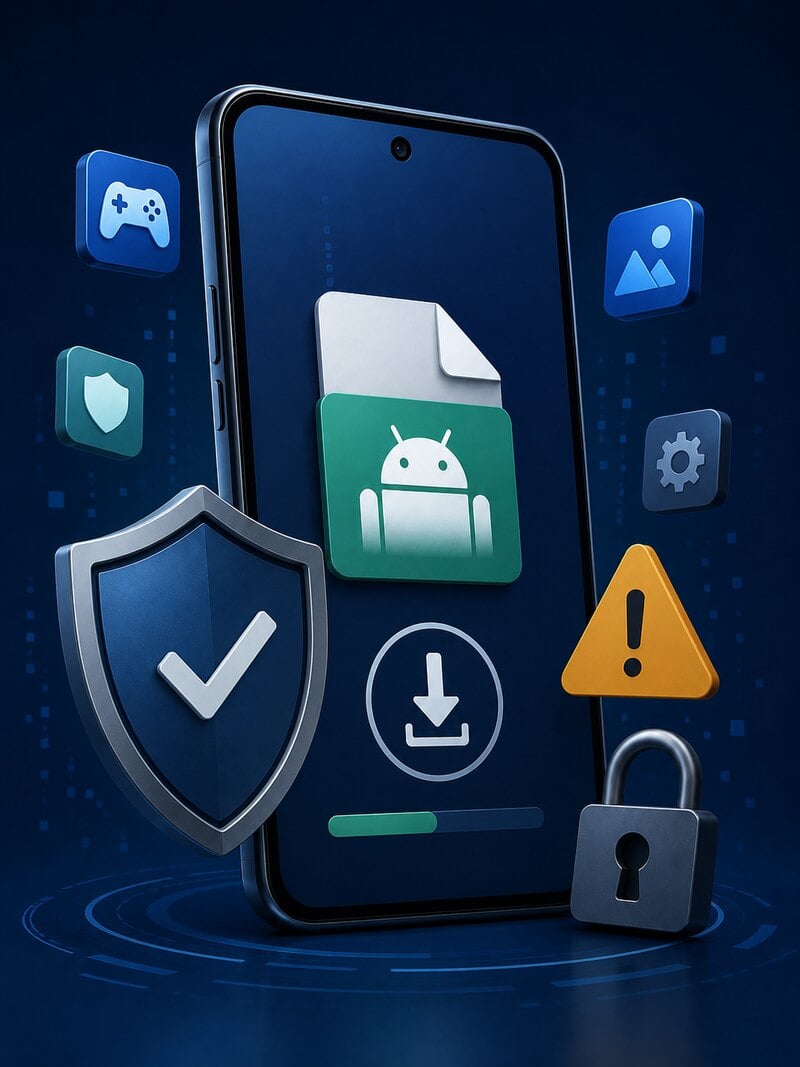
What Is an APK File for Android?
If you use an Android phone, you may have seen the term APK while searching for apps or games online. Some websites offer an APK download instead of a Google Play install button. Some users also mention APK files when talking about apps that are not available in their region, older app versions, or Android games downloaded outside the Play Store.
![]()
Guide
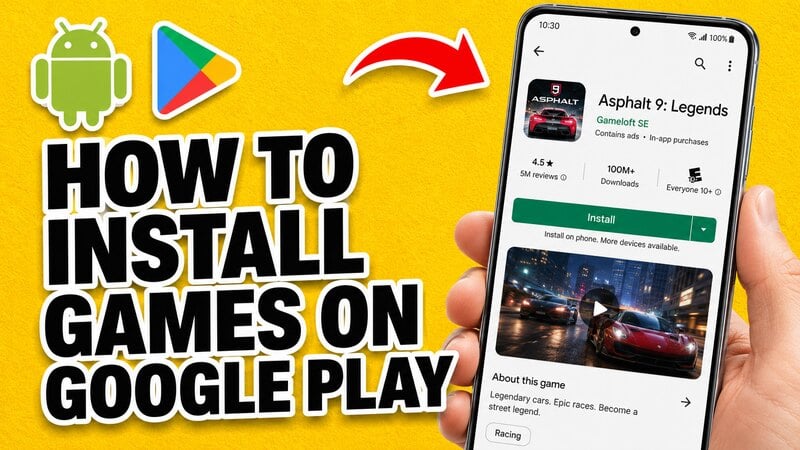
How to Install Games from Google Play for Beginners
Installing games on an Android phone is usually simple, but for beginners, the process can still feel confusing at first. You may not know where to search, which button to tap, whether the game is safe, or why Google Play sometimes asks for account settings, storage access, or payment information. If you are using an Android phone for the first time, learning how to install games from Google Play is one of the easiest ways to get started.
![]()
Guide
How Useful Gemini Is for Everyday Questions and Quick Tasks
emini feels different from many AI apps because it is not only trying to be a chatbot. After using it for everyday questions, quick writing, image understanding, and planning, I think its biggest strength is convenience.
![]()
Guide
What to Know Before Downloading APKs
For many Android users, downloading an APK is a common way to install apps and games. Sometimes an app is not available in a certain country.
![]()
Guide
ChatGPT Review: Is It Still the Best AI App in 2026?
![]()
Guide
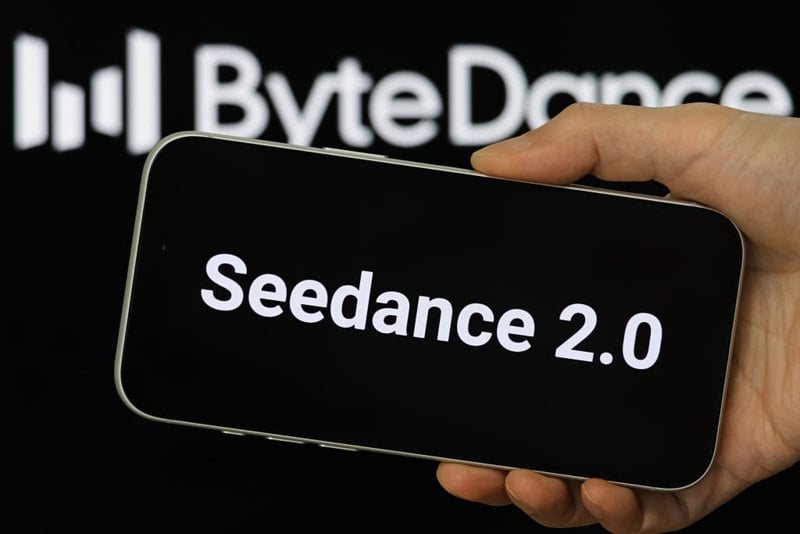
Seedance 2.0 vs Sora: The Future of AI Video Generation
The AI video race has intensified dramatically over the past two years. Platforms like Sora from OpenAI and Luma Dream Machine pushed the boundaries of text-to-video realism. Yet, despite their impressive outputs, most tools still operate as probabilistic generators—you describe a scene, and the model interprets it. Control remains limited. With the February 2026 release of Seedance 2.0, developed by ByteDance, the paradigm shifted. Internally known as Jimeng 2.0, Seedance does not position itself as just another video model. It positions itself as an AI Director. Rather than guessing what you want, Seedance 2.0 allows you to direct what happens. This distinction defines everything that follows.
Recommended Apps
![]()
Home Design 3D
Anuman4.2
![]()
Truth or Dare Game - Party App
Chouic4.8
![]()
Photo Collage Maker
Scoompa4.7![]()
Learn to Draw Flower
Creative APPS4.2![]()
FIFA World Cup 2026™
FIFA2.8![]()
Mirror Plus: Mirror with Light
Digitalchemy, LLC4.4![]()
Meitu- Photo Editor & AI Art
Meitu (China) Limited4.5![]()
Perplexity - Ask Anything
PerplexityAI4.7![]()
GhostTube SLS Camera Alternate
GhostTube4![]()
Boom Chip Blast: 2-Player
Black Pyramid 3D Games Studio0![]()
Healthy Benefits+
Solutran, Inc.4.5![]()
Deepcheck AI Search Assistant
rohe.ai4![]()
Idol Prank Video Call & Chat
LightCode Solutions4![]()
Face Shape - Pretty Scale
GlintTec Apps3.9![]()
Plant App - Plant Identifier
ScaleUp4.6